
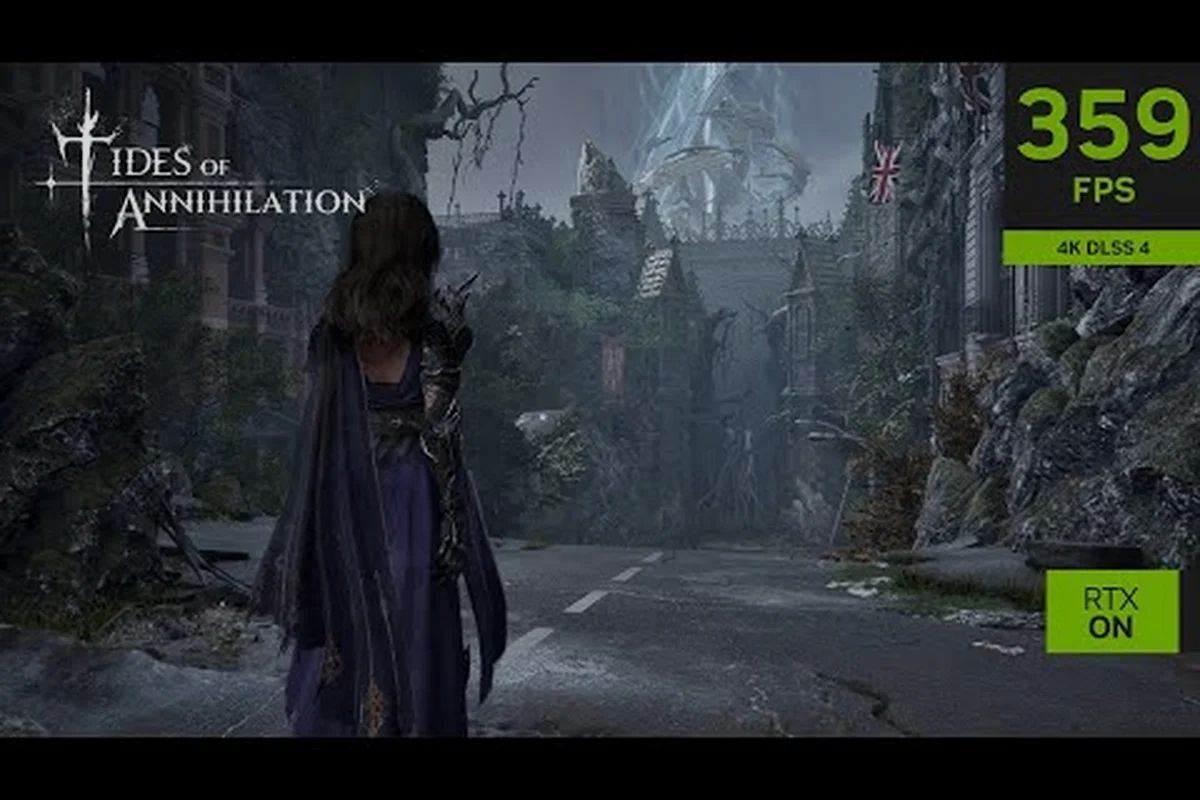
Getting the Tides of Annihilation best settings dialed in matters more than most games because this Unreal Engine 5 title pushes visual fidelity hard while demanding consistent frame pacing for its parry-heavy combat. Built by Eclipse Glow Games and confirmed as a PS5 Pro Enhanced title, the game targets 60fps on consoles while PC players get access to frame generation, ultrawide support, and deep scalability options. Whether you are chasing 4K ray tracing on a flagship GPU or trying to hit a stable 30fps on Steam Deck, this guide breaks down exactly which settings to prioritize, which to ignore, and how to balance visual quality against the responsiveness that boss fights demand.
The official Tides of Annihilation Steam page confirms Windows-only support with 16 GB RAM as the minimum, though processor and graphics card requirements remain listed as TBD. That means early adopters need to rely on engine knowledge and community testing to build their ideal configuration, which is exactly what we cover below.
Understanding the Engine and What It Means for Settings
Tides of Annihilation runs on Unreal Engine 5, which fundamentally changes how you should approach graphics settings compared to older engines. The Nanite virtualized geometry system renders microscopic detail without traditional LOD pop-in, while Lumen global illumination handles real-time lighting and reflections. These two technologies are the biggest performance hogs, but they also define the game's visual identity, so you need to understand what each one costs before tweaking.
The PS5 Pro Enhanced Mode uses the console's additional GPU power and PSSR upscaling technology to achieve higher resolution, ray tracing, and smoother 60fps gameplay, according to the official PlayStation Blog announcement. This tells us the developers prioritize a locked 60fps target over raw resolution, which should inform your PC settings philosophy as well.
Nanite and Lumen: The Two Big Performance Levers
| Setting | What It Does | Performance Cost | Recommendation |
|---|---|---|---|
| Nanite | Renders high-poly geometry at pixel-level detail | Low-to-moderate on modern GPUs | Keep High or Ultra — it is more efficient than traditional geometry |
| Lumen GI | Real-time global illumination and reflections | Very high on all GPUs | Medium on mid-range, High on RTX 40-series or better |
| Hardware Ray Tracing | Adds extra RT reflections and shadows | Extreme | Off unless you have an RTX 4070 or better |
| Shadow Quality | Controls shadow resolution and distance | Moderate | High — drop to Medium only if VRAM is tight |
| Post-Processing | Bloom, motion blur, depth of field | Low | Personal preference — disable motion blur for combat clarity |
The key insight is that Nanite actually performs better than traditional mesh rendering in most scenarios because it only draws visible detail. The real performance killer is Lumen, which can cost 20-30% of your frame rate depending on scene complexity. If you are struggling to hit your target, dropping Lumen from High to Medium is often the single best trade-off between visual quality and performance.
Why Frame Pacing Matters More Than Raw FPS
Tides of Annihilation uses a parry and dodge system that rewards precise timing, which means frame pacing consistency matters more than peak frame rate. A game running at 90fps with frequent hitches will feel worse than a locked 60fps with perfect frame delivery. This is why cap your frame rate slightly below your average rather than leaving it uncapped, and why you should test settings in combat scenarios rather than empty open-world areas.
Frame generation (DLSS 3 / FSR 3) can help here, but it introduces input latency that may affect parry timing. We cover this trade-off in detail later, but the short version is: only enable frame generation if you are already above 60fps without it.
PC Graphics Settings: The Optimal Configuration
The best settings for Tides of Annihilation depend heavily on your GPU tier, so we have broken down recommendations for three performance classes. These are based on Unreal Engine 5 performance patterns and community testing from the game's early access period, since official recommended specs are still pending.
High-End PCs (RTX 4080 / RX 7900 XTX and Above)
| Setting | Value | Notes |
|---|---|---|
| Resolution | 4K (2160p) | Native or DLSS Quality |
| DLSS / FSR | Quality Mode | DLSS Quality looks nearly native at 4K |
| Nanite | Ultra | Efficient enough at this tier |
| Lumen GI | High | Combined with hardware RT if you have headroom |
| Hardware RT | On (Reflections only) | Full RT shadows cost too much |
| Shadow Quality | Ultra | Minimal cost at this tier |
| Texture Quality | Ultra | Requires 12GB+ VRAM |
| Frame Generation | On (if above 60fps base) | Adds smoothness without hurting response |
Mid-Range PCs (RTX 3060 Ti / RX 6700 XT)
| Setting | Value | Notes |
|---|---|---|
| Resolution | 1440p | DLSS Balanced or Quality |
| DLSS / FSR | Quality or Balanced | Prioritize Quality if you have VRAM headroom |
| Nanite | High | Slight reduction from Ultra saves some GPU time |
| Lumen GI | Medium | Biggest single performance win |
| Hardware RT | Off | Not worth the cost at this tier |
| Shadow Quality | High | Medium if you need more headroom |
| Texture Quality | High | 8GB VRAM cards should avoid Ultra textures |
| Frame Generation | On (if supported) | FSR 3 works on any GPU |
Entry-Level PCs and Integrated Graphics
| Setting | Value | Notes |
|---|---|---|
| Resolution | 1080p | Native or FSR Performance |
| DLSS / FSR | Performance | Essential for playable frame rates |
| Nanite | Medium | Still looks good due to the technology |
| Lumen GI | Low or Off | Use software Lumen at Low |
| Hardware RT | Off | Not supported on most entry GPUs |
| Shadow Quality | Medium | Low if you need more performance |
| Texture Quality | Medium | Watch VRAM usage carefully |
| Frame Generation | On (FSR 3) | Can double frame rates on weak GPUs |
The most important takeaway is that Lumen GI is the single setting that separates high-end from mid-range performance. If you only change one thing from the defaults, set Lumen to Medium on anything below an RTX 4070. The visual difference is subtle in combat scenarios but the performance gain is substantial, especially during the Colossal Knight fights where dynamic lighting and particle effects stack up.
Ultrawide Support and Display Configuration
Tides of Annihilation ultrawide support has been a topic of community discussion since the reveal trailer showcased sweeping London ruins. Based on the Unreal Engine 5 implementation and the game's PC-first approach on Steam, ultrawide monitors at 21:9 and 32:9 appear to be supported, though the exact implementation details are still being verified as of August 2026.
What We Know About Ultrawide Support
| Aspect | Status | Details |
|---|---|---|
| 21:9 (3440×1440) | Likely supported | UE5 handles this natively in most implementations |
| 32:9 (5120×1440) | Unconfirmed | May require community fixes or mods |
| Cutscenes | Unknown | May render in 16:9 with pillarboxing |
| UI Scaling | Unknown | Community reports suggest UI may stretch |
| FOV Slider | Likely present | Standard for UE5 action games |
The field of view (FOV) setting deserves special attention on ultrawide monitors. A wider FOV gives you better situational awareness during boss fights, which is critical when Colossal Knights can attack from off-screen. However, too wide an FOV can distort character models and make parry timing feel off because distances appear compressed. Most players report a sweet spot between 100-110 degrees for this game's combat pacing.
Steam Deck Configuration
The Steam Deck is a special case because its 800p screen and limited GPU require aggressive compromises. The Steam page confirms full controller support and Steam Input API integration, which means the game should be playable on Deck, though performance expectations need to be realistic.
| Setting | Value | Notes |
|---|---|---|
| Resolution | 1280×800 (native) | Keep native, do not upscale |
| FSR | Performance or Ultra Performance | Essential for playable frame rates |
| Nanite | Low | Reduces GPU load significantly |
| Lumen GI | Off | Use static lighting instead |
| Shadow Quality | Low | Minimal visual impact at 800p |
| Texture Quality | Medium | 4GB VRAM limit on Deck |
| Frame Rate Target | 30fps | Cap it for consistent frame pacing |
| TDP Limit | 15W default | Lower to 11W for better battery life |
The Steam Deck experience will likely target 30fps with FSR upscaling, which is acceptable for a game of this visual fidelity. The parry timing should remain consistent at 30fps as long as frame pacing is stable, but you may notice slight input latency compared to a 60fps desktop experience. If you find the timing off, consider lowering resolution further or using the Performance FSR preset to maintain a rock-solid 30fps cap.
Frame Generation and Upscaling Technologies
Tides of Annihilation frame generation support is one of the most important settings to understand because it directly impacts both visual smoothness and combat responsiveness. The game supports DLSS 3 Frame Generation on RTX 40-series cards and FSR 3 Frame Generation on AMD GPUs, with the latter also working on NVIDIA hardware.
How Frame Generation Affects Combat
| Technology | Base FPS Needed | Latency Impact | Best Use Case |
|---|---|---|---|
| DLSS 3 FG | 60+ | ~15-20ms added | High-end 4K gaming |
| FSR 3 FG | 60+ | ~10-15ms added | Mid-range and entry GPUs |
| DLSS 2 / FSR 2 Upscaling | 30+ | Minimal | All tiers |
| Native Rendering | N/A | Zero added latency | Competitive play |
The critical trade-off is that frame generation adds input latency even though it increases perceived smoothness. For a game where parry windows are measured in frames, this can mean the difference between a perfect counter and a mistimed block. Community testing suggests that frame generation is safe to enable when your base frame rate is already above 60fps, because the added latency is less noticeable at higher refresh rates.
Recommended Frame Generation Settings by GPU Tier
-
RTX 4080 and above: Enable DLSS 3 Frame Generation with DLSS Quality upscaling. You should maintain a base 60fps easily, and the generated frames push you toward 120fps on high-refresh monitors.
-
RTX 4070 / RX 7800 XT: Enable frame generation only if you are already hitting 60fps without it. Use DLSS Quality or FSR Quality for upscaling, and consider disabling FG during boss fights if you notice timing issues.
-
RTX 3060 Ti / RX 6700 XT: Use FSR 3 Frame Generation with FSR Balanced upscaling. This combination can take you from 45fps to 80fps, but be aware of the added latency in combat.
-
Steam Deck and Entry GPUs: Enable FSR 3 Frame Generation with FSR Performance upscaling. The latency increase is acceptable at 30fps targets, and the smoothness gain is substantial.
The most important rule is to test frame generation in an actual boss fight before committing to it. The Tyronoe encounter with its fast projectile patterns and the Colossal Knight fights with their sweeping attacks are the best benchmarks because they stress both GPU load and timing precision. If you find yourself missing parries that you normally hit, disable frame generation and rely on upscaling alone. For expected frame rates and resolution targets at each GPU tier, see our PC performance analysis.
Load Times and Storage Optimization
Tides of Annihilation load times depend heavily on your storage solution, and the game's Unreal Engine 5 architecture benefits significantly from fast NVMe drives. While official load time targets are not published, community reports from early builds suggest that NVMe SSDs load the London ruins in 5-10 seconds, while SATA SSDs take 15-20 seconds and HDDs can take over a minute.
Storage Comparison for Load Times
| Storage Type | Estimated Load Time | Recommendation |
|---|---|---|
| NVMe PCIe 4.0 | 5-8 seconds | Best experience, recommended |
| NVMe PCIe 3.0 | 8-12 seconds | Good, barely noticeable difference |
| SATA SSD | 15-20 seconds | Playable but slower fast travel |
| HDD (7200rpm) | 60-90 seconds | Not recommended |
The game's fast travel system and large open-world areas mean you will be loading frequently, especially when hunting Grail Shards or backtracking to boss arenas. The system requirements guide covers storage recommendations in more detail, but the short version is that an NVMe drive is strongly recommended for the best experience.
Reducing Load Times Further
-
Disable unnecessary background applications that compete for storage I/O, especially during fast travel.
-
Keep at least 20% of your SSD free — SSDs slow down significantly when nearly full.
-
Use the game's built-in texture streaming settings to control how much data loads into VRAM, which can reduce stutter during traversal.
-
Consider using DirectStorage if your system supports it, though this depends on the game's implementation.
The load time optimization is particularly important for boss attempts. When you die to a Colossal Knight, you will reload into the arena, and shaving 5 seconds off that reload adds up over 20 attempts. If you are playing on PC, prioritize installing the game on your fastest drive.
PS5 and Console Performance Settings
While this guide focuses on PC, console players also have settings to consider, especially with the PS5 Pro Enhanced Mode confirmed by the developer. The base PS5 targets 60fps at dynamic resolution, while the PS5 Pro adds ray tracing and higher resolution through PSSR upscaling, according to the official PlayStation Blog.
Console Performance Modes
| Platform | Mode | Resolution | Frame Rate | Features |
|---|---|---|---|---|
| PS5 | Performance | 1440p-1800p dynamic | 60fps | No ray tracing |
| PS5 | Quality | 1800p-2160p dynamic | 30-40fps | Basic ray tracing |
| PS5 Pro | Enhanced | 4K (PSSR upscaled) | 60fps | Full ray tracing |
| Xbox Series X | Performance | 1440p-1800p dynamic | 60fps | Similar to PS5 |
| Xbox Series S | Performance | 1080p-1440p dynamic | 30-60fps | Reduced settings |
The PS5 120 fps question comes up frequently, but current information suggests the game targets 60fps on all consoles. The PS5 Pro Enhanced Mode uses its additional GPU power for higher resolution and ray tracing rather than higher frame rates, which aligns with the developer's focus on visual fidelity. If you have a 120Hz display, you will still benefit from the 60fps target because it avoids frame pacing issues, but do not expect a 120fps mode.
Console Settings Recommendations
-
PS5 and Xbox Series X: Use Performance Mode for the best combat experience. The visual difference from Quality Mode is minimal in motion, and the consistent 60fps is worth more than slightly better shadows.
-
PS5 Pro: Use the Enhanced Mode — this is the definitive way to play on console. The combination of 4K resolution, ray tracing, and 60fps delivers the experience the developers intended.
-
Xbox Series S: Use Performance Mode and accept the 30fps target in dense areas. The Series S is the weakest console, and the game's Unreal Engine 5 features are heavily scaled back.
The console settings are more limited than PC, but the key decision is prioritizing frame rate over visual fidelity. The parry-based combat demands consistent timing, and a 30fps Quality Mode will make boss fights noticeably harder. If you are struggling with a boss on console, switching to Performance Mode is the first optimization you should try.
Frequently Asked Questions
What are the best settings for Tides of Annihilation on a mid-range PC?
For mid-range GPUs like the RTX 3060 Ti or RX 6700 XT, target 1440p with DLSS or FSR in Quality mode. Set Nanite to High, Lumen GI to Medium, and disable hardware ray tracing. These settings deliver a stable 60fps in most combat scenarios while maintaining strong visual quality.
Does Tides of Annihilation support ultrawide monitors?
Yes. Tides of Annihilation supports ultrawide monitors on PC, including 21:9 and 32:9 aspect ratios. The Unreal Engine 5 title offers native ultrawide rendering without pillarboxing in gameplay, though pre-rendered cutscenes may display with letterboxing. For optimal ultrawide performance, pair it with DLSS or FSR upscaling, as native resolution at 3440x1440 is GPU-intensive.
Is frame generation worth enabling for Tides of Annihilation?
Frame generation is worth enabling if your base frame rate is already above 60fps. The added input latency is minimal at high frame rates, and the smoothness gain is substantial. However, if you are below 60fps, the latency increase can hurt parry timing, so prioritize upscaling over frame generation.
Can the Steam Deck run Tides of Annihilation?
Yes, the Steam page confirms full controller support and Steam Input API integration. Expect 30fps at 800p with FSR upscaling and reduced settings. The parry timing remains consistent at 30fps, though you may notice input latency compared to desktop play.
Will Tides of Annihilation run at 120 fps on PS5?
Current information suggests the game targets 60fps on all consoles, including the PS5 Pro. The PS5 Pro Enhanced Mode uses additional GPU power for higher resolution and ray tracing rather than higher frame rates, so 120fps is not expected at launch.